Bulk Accounts Buy

  • SHOP
    • Buy Gmail Accounts PVA – New Or Old In Bulk- Instant
    • Buy Gmail Accounts with an App Password [PVA & Old]
    • Buy Facebook Accounts – OLD/Aged Facebook Accounts For Sale
    • Buy Instagram Accounts in Bulk – Aged & Verified
    • Buy Linkedin Accounts in Bulk – Verified and Working
    • Buy iCloud Accounts
    • Buy Twitter Accounts in Bulk – PVA and Aged Accounts
    • Buy Hotmail Accounts – Verified and Aged Accounts
    • Buy Yahoo Accounts In Bulk – Phone Verified Accounts(PVA)
    • Buy Edu Emails – Edu Email Accounts Sale
    • Buy Youtube Accounts in Bulk – All PVA and Aged Accounts
    • Buy Bulk Pinterest Accounts – PVA
    • Buy AOL Accounts – Verified and Aged Accounts
    • Buy GMX Accounts
    • Buy TikTok Accounts | Verfied TikTok Accounts For Sale
  • My Account
    • My Cart
  • Support
  • About us
    • FAQ – Frequently Asked Questions
  • Terms
  • Blog
You are here: Home / Archives for Tips

How To Use Reddit : A Complete Guide For Beginner

Last updated on June 12, 2023 By Kevin Anderson

How To Use Reddit

Welcome to the world of Reddit, a bustling online community filled with diverse interests, discussions, and communities. Whether you’re seeking information, entertainment, or connecting with like-minded individuals, Reddit offers a vast array of topics and conversations to explore
How To Use Reddit

Navigating The Reddit Interface

Navigating the Reddit interface is essential to fully enjoy and engage with the platform’s diverse content. Upon logging in, users are greeted with the home page, a personalised feed based on subscribed subreddits. The top navigation bar allows easy access to popular sections like “Home,” “Popular,” and “All.” The left sidebar showcases subscribed subreddits, facilitating quick jumps to specific communities. The main feed presents posts in a sequential order, with options to upvote, downvote, and comment. The right sidebar provides additional information about the subreddit and its moderators. Users can also access their profile, messages, and notifications from the top-right corner. With a bit of exploration, Reddit’s interface becomes familiar and effortless to navigate.

Joining Subreddits and Communities

Joining subreddits and communities on Reddit is a fantastic way to connect with like-minded individuals and dive into specific topics of interest. To join a subreddit, simply search for a specific topic or browse through the vast selection of communities on the platform. Once you find a subreddit that catches your attention, click on the “Join” button to become a member. This action allows you to access the subreddit’s content and participate in discussions.

Joining communities opens up a world of possibilities for engaging with fellow enthusiasts, sharing insights, and seeking advice. Each subreddit has its own set of rules and guidelines, so it’s crucial to familiarize yourself with them to ensure respectful participation. Subreddits often feature posts, images, videos, articles, and user-generated content related to the specific theme. Additionally, active participation by commenting, upvoting, or even posting your own content allows you to connect with like-minded individuals and build a sense of community within the subreddit. The diversity of communities on Reddit ensures that there is something for everyone, catering to various interests, hobbies, and passions.

Understanding The Reddit Voting System

Understanding the Reddit voting system is key to actively participating in the platform and shaping the visibility of posts and comments.

Upvotes and Downvotes:

  • Upvoting a post or comment indicates that you find it valuable, interesting, or relevant.
  • Downvoting implies that the post or comment is not contributing to the discussion, is off-topic, or violates community guidelines.

Karma:

  • Upvotes contribute to a user’s karma score, which reflects their overall reputation on Reddit.
  • High karma scores can increase visibility and credibility within the community.

Sorting:

  • Posts and comments can be sorted by different criteria such as “Hot,” “New,” “Top,” or “Controversial.”
  • Sorting options help determine the order in which content appears within a subreddit or the site-wide feed.

Influence on Visibility:

  • Upvoted posts and comments rise in visibility, making them more likely to be seen by other users.
  • Downvoted content may be hidden or receive less attention, affecting its visibility.

Community Moderation:

  • Reddit’s voting system empowers the community to moderate content collectively.
  • Upvotes and downvotes influence the ranking of posts and help determine what gains attention.

Understanding the Reddit voting system allows users to contribute to the platform’s content curation and participate actively in shaping discussions. By using upvotes and downvotes wisely, users can help promote quality content, highlight valuable contributions, and foster a healthy and engaging community environment.

Using Reddit’s Messaging System

Private Messaging: Reddit allows users to send private messages to other users. Click on the envelope icon in the top-right corner to access your messages. Click on “Compose” to start a new message. Enter the username of the recipient and compose your message. Messages can be text-based or include links, images, and formatting using Markdown.

Notifications: Reddit also provides notifications for various activities. When someone replies to your post or comment, you receive a notification. Notifications appear as a red envelope icon in the top-right corner. Click on the envelope to view and respond to notifications.

Modmail: For subreddit moderators, there is a separate messaging system called Modmail. Modmail allows moderators to communicate with each other and manage subreddit-related matters. It can be accessed through the Moderator Tools section on the subreddit’s sidebar. Modmail messages can be organized into threads for easy tracking and collaboration.

Using Reddit’s messaging system enables users to communicate privately, stay updated on replies and notifications, and fosters collaboration and coordination among moderators. Whether it’s engaging in discussions, seeking clarification, or coordinating subreddit activities, the messaging system provides a convenient way to connect with other Reddit users.

Customising Your Reddit Experience

Customising your Reddit experience allows you to tailor the platform to your preferences and enhance your browsing and engagement. Here’s how you can personalise your Reddit experience:

User Settings:

  • Click on your profile icon and select “User Settings” to access customization options.
  • Adjust preferences such as language, time zone, and display options.
  • Enable or disable features like dark mode or compact view for a more comfortable browsing experience.

Subreddit Customization:

  • Some subreddits allow you to customise your experience within their community.
  • Look for options like custom themes, flairs, or filters to personalise your interactions.
  • You can also subscribe or unsubscribe from subreddits based on your interests, ensuring a tailored feed.

Customising your Reddit experience enables you to create a personalised environment that aligns with your preferences and interests. By adjusting user settings and exploring subreddit-specific customization options, you can optimize your browsing experience and engage with content that resonates with you. Whether it’s choosing a preferred layout, enabling specific features, or subscribing to relevant subreddits, customization empowers you to make Reddit your own.

Understanding Reddit’s Rules and Etiquette

Reddiquette: Familiarise yourself with Reddiquette, which outlines the platform’s guidelines for respectful behaviour and engagement.

Community Rules: Each subreddit has its own set of rules listed in the sidebar or community guidelines. Read and follow these rules when participating in specific communities.

Avoid Spam and Self-Promotion: Reddit discourages excessive self-promotion or spamming. Share content thoughtfully and contribute meaningfully to discussions.

Respectful Interaction: Be respectful to fellow users, even when disagreements arise. Avoid personal attacks, hate speech, or harassment.

Proper Attribution: Give credit to original content creators by providing proper attribution when sharing or discussing their work.

Relevant Contributions: Ensure your posts and comments contribute to the discussion and are relevant to the subreddit’s topic.

Upvote and Downvote Responsibly: Use the voting system to promote quality content and discourage low-quality or off-topic contributions.

Report Inappropriate Content: If you come across content that violates the rules or guidelines, report it to the subreddit moderators or site administrators.

Understanding Reddit’s rules and etiquette is crucial for fostering a positive and respectful community. By adhering to these guidelines, you can engage in meaningful discussions, contribute valuable content, and help maintain a welcoming environment for all users.

Building a Reddit Reputation and Karma

Building a Reddit reputation and karma is an important aspect of engaging with the platform and increasing your visibility within the community.

Quality Contributions

  • Post high-quality content that adds value to discussions and communities.
  • Share informative articles, insightful comments, or original creations.
  • Engage in meaningful conversations and provide helpful responses.

Upvoting and Downvoting

  • Use the voting system responsibly to promote deserving content and discourage low-quality or irrelevant posts.
  • Upvoting posts and comments that you find valuable can increase their visibility.

Participate in Discussions

  • Engage actively in discussions by sharing your thoughts, insights, and experiences.
  • Provide constructive feedback and contribute to the ongoing conversation.

Follow Subreddit Rules

  • Familiarise yourself with the rules and guidelines of each subreddit you participate in.
  • Adhere to the community’s standards and contribute in a manner that aligns with their expectations.

Be Respectful and Positive

  • Treat others with respect, even when you disagree with their views.
  • Foster a positive and welcoming environment for everyone.

Building a reputation and accumulating karma takes time and consistent participation. By being an active and valued member of the Reddit community, you can enhance your visibility, gain recognition for your contributions, and create meaningful connections with like-minded individuals.

Exploring Advanced Reddit Features and Tools

Exploring advanced Reddit features and tools allows users to unlock additional functionality and enhance their Reddit experience. Here are some features worth exploring:

Reddit Enhancement Suite (RES): A browser extension that provides numerous customization options, such as night mode, user tagging, and advanced comment navigation.

Multireddits: Create custom feeds by combining multiple subreddits into one. This helps streamline content from various communities and saves time navigating between different pages.

Reddit Premium: Upgrade to Reddit Premium for an ad-free experience, access to exclusive communities, and the ability to customise avatars and profile themes.

Reddit Live: Participate in real-time discussions, news updates, and live events by joining Reddit Live threads.

Moderator Tools: If you become a subreddit moderator, familiarise yourself with the tools available for managing community settings, handling reports, and enforcing rules effectively.

Exploring these advanced features and tools allows users to personalise their experience, streamline content consumption, and engage with the Reddit community in unique ways. Keep experimenting and discovering new features to make the most out of your Reddit journey.

Read More Related Articles –

How To Use Pinterest For Personal Use?
How to Use Instagram?
How To Use Pinterest Hashtags For Business
How To Use LinkedIn Messages To Grow Your Business?
How to Get Pinterest Followers: 10 Tips and Tricks
How to Use Twitter Hashtags for Business
How To Use Pinterest For Personal Use?

Last updated on June 4, 2023 By Kevin Anderson

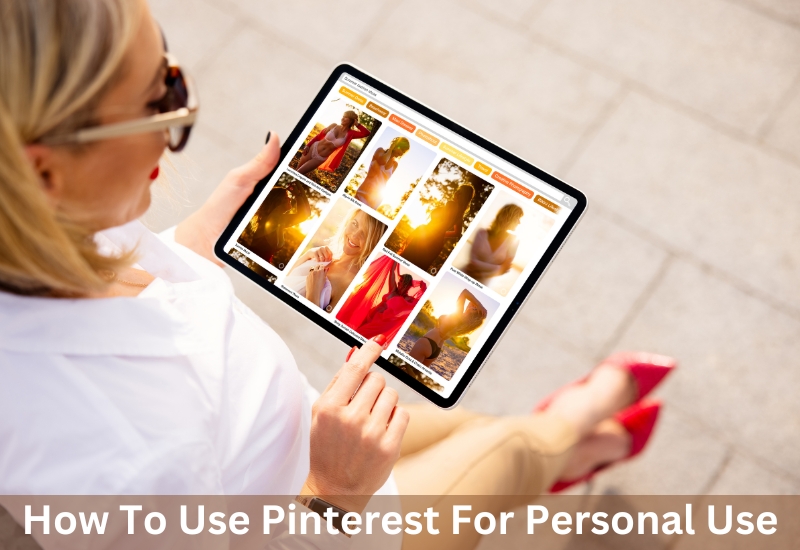
How To Use Pinterest For Personal Use

Pinterest is a powerful visual discovery platform that allows you to explore, save, and organise inspiring content. Pinterest is an excellent tool for personal use. By creating boards and pinning images, you can easily save and categorise your interests, hobbies, and aspirations. With millions of pins available on diverse topics, you can discover new recipes, DIY projects, fashion trends, travel destinations, and much more.

How To Use Pinterest For Personal Use

Creating a Pinterest Account for Personal Use

Creating a Pinterest account for personal use is a simple and exciting process that allows you to discover, save, and organize inspiring content. To get started, visit the Pinterest website or download the mobile app. Sign up using your email address or social media accounts like Google or Facebook. Choose a username that reflects your personal brand or interests. Customise your profile by adding a profile picture and writing a brief bio. Explore various interests during the onboarding process to personalise your feed. You’re now ready to start saving pins, creating boards, and exploring the vast world of inspiration that Pinterest has to offer.

Customising Pinterest profile and settings

Customising your Pinterest profile and settings allows you to personalise your experience on the platform.

  • Upload a profile picture that represents your personal brand or interests.
  • Write a compelling bio that provides a brief introduction and highlights your passions or expertise.
  • Choose a captivating cover image for your boards to add visual appeal to your profile.
  • Rearrange the order of your boards to showcase your most important or popular content first.
  • Adjust your notification settings to receive updates about new followers, comments, and relevant recommendations.
  • Connect your other social media accounts to share your Pinterest activity with your followers.
  • Enable or disable features such as “Tastemakers” or “Related Pins” to tailor your Pinterest experience.
  • Review your privacy settings to control who can see your boards, followers, and activity.
  • Utilise the “Claim” feature to associate your website or blog with your Pinterest profile for attribution and additional exposure.
  • Regularly review and update your profile and settings to ensure they reflect your evolving interests and preferences.

Creative ways to use secret boards on Pinterest for personal use

Secret boards on Pinterest offer a hidden space where you can curate and organize content without sharing it publicly. While the primary use of secret boards is often associated with planning surprises or private projects, there are several creative ways to utilise them for personal use. Here are some ideas to make the most of your secret boards:

Personal Vision Board

Create a secret board dedicated to visualizing your goals, aspirations, and dreams. Pin images that represent your desired future, whether it’s travel destinations, dream homes, or personal achievements.

Gift Ideas and Wishlists

Use secret boards to collect gift ideas for your loved ones or create a personal wishlist. You can save products, images, or articles that catch your eye and reference them when needed.

Event Planning

Secret boards are perfect for organizing and brainstorming events like parties, weddings, or vacations. Pin inspiration, venue ideas, decorations, and potential activities without revealing your plans until you’re ready.

Home Decor and Design

Create a secret board for gathering home décor inspiration and design ideas. Pin images of furniture, colour schemes, and decorative elements to create a visual guide for your future home projects.

Personal Development

Utilise secret boards to compile resources for personal growth, such as motivational quotes, self-help articles, or recommended books. This can serve as a private library of inspiration and self-improvement materials.

Recipe Collections

Collect and organize recipes that you want to try or have enjoyed privately on a secret board. This way, you can easily access them without cluttering your public boards.

Best practices for promoting personal blog or website content on Pinterest

Promoting your personal blog or website content on Pinterest can help drive traffic and increase visibility. Follow these best practices to optimise your promotional efforts:

Create visually appealing pins: Design eye-catching graphics or use high-quality images that represent your blog or website content effectively.

Write compelling pin descriptions: Craft keyword-rich descriptions that entice users to click through and read your blog post or explore your website.

Use relevant hashtags: Incorporate relevant hashtags in your pin descriptions to increase discoverability and reach a wider audience.

Optimize your website for Pinterest: Add Pin It buttons to your blog or website to encourage readers to share your content on Pinterest. Also, include Pinterest-friendly images within your blog posts for easy pinning.

Engage with the Pinterest community: Like, comment, and follow other users in your niche to build connections and increase your visibility.

Utilise Pinterest analytics: Monitor your pin performance, click-through rates, and engagement to understand what resonates with your audience and refine your content strategy.

Tracking and analyse the performance of personal pins and boards on Pinterest

Tracking and analysing the performance of your personal pins and boards on Pinterest is essential for understanding audience engagement and optimising your content strategy.

Assess board effectiveness: Analyse board-level metrics to identify which boards are generating the most engagement and attracting followers.

Understand audience insights: Gain insights into your audience demographics, such as their age, gender, and location, to better tailor your content to their preferences.

Discover top-performing content: Identify your most successful pins and boards to replicate the strategies that resonate with your audience.

Refine your content strategy: Use data-driven insights to inform future content creation, focusing on topics, styles, and formats that perform well.

Optimise for searchability: Review keywords and trends associated with high-performing pins to enhance your Pinterest SEO and increase discoverability.

Experiment and iterate: Continuously test different pin styles, descriptions, and formats to refine your approach and maximise engagement.

Tips for engaging with other users and communities on Pinterest

Be active: Regularly pin, like, and comment on others’ content to show your presence and interest.

Follow relevant accounts: Identify and follow pinners and communities in your niche to stay updated and build relationships.

Comment thoughtfully: Leave meaningful comments that contribute to the conversation and show genuine interest in others’ pins.

Collaborate on group boards: Join or create group boards where you can collaborate with like-minded pinners and share content with a larger audience.

Repin and share: Share others’ content that aligns with your interests or audience to showcase appreciation and support.

Use @mentions: Use @mentions to tag and acknowledge specific pinners or businesses in your comments, inviting them to engage further.

Participate in challenges or trends: Engage in Pinterest challenges or trending topics to connect with a broader community and increase exposure.

How can I use Pinterest to plan events, trips, or projects?

Pinterest is a fantastic platform for planning events, trips, or projects. Here’s how you can utilize Pinterest effectively for these purposes:

Create dedicated boards: Set up separate boards for each event, trip, or project to keep your ideas organized and easily accessible.

Find inspiration: Search for relevant keywords and phrases to discover a plethora of ideas, images, and resources to spark your creativity.

Pin and save ideas: Save pins that inspire you, including decor, themes, activities, destinations, or project inspirations, onto your dedicated boards.

Collaborate and share: Invite collaborators to contribute to your boards, allowing them to add their ideas and suggestions.

Research and plan: Use Pinterest to research and gather information about locations, venues, vendors, or supplies needed for your event, trip, or project.

Make a checklist: Create a checklist board to keep track of tasks, deadlines, and items needed for your planning process.

Engage with the community: Follow other pinners or join relevant group boards related to your event, trip, or project for additional ideas and insights.

Capture ideas on the go: Utilise the Pinterest app to quickly capture and save ideas while you’re on the move.

Pinterest’s visual nature and vast collection of pins make it an ideal platform for organising and planning events, trips, or projects.

Related Post

How to Use Instagram for Business – Complete Guide with Tips
How to Use Twitter for Beginners – Complete Guide
Why Use Facebook Page for Business – Benefits
How To Use LinkedIn Messages To Grow Your Business?
How To Use Instagram Hashtags For Business : Complete Guide
How to Use Twitter Hashtags for Business
How to Use Instagram?

Last updated on May 27, 2023 By Kevin Anderson

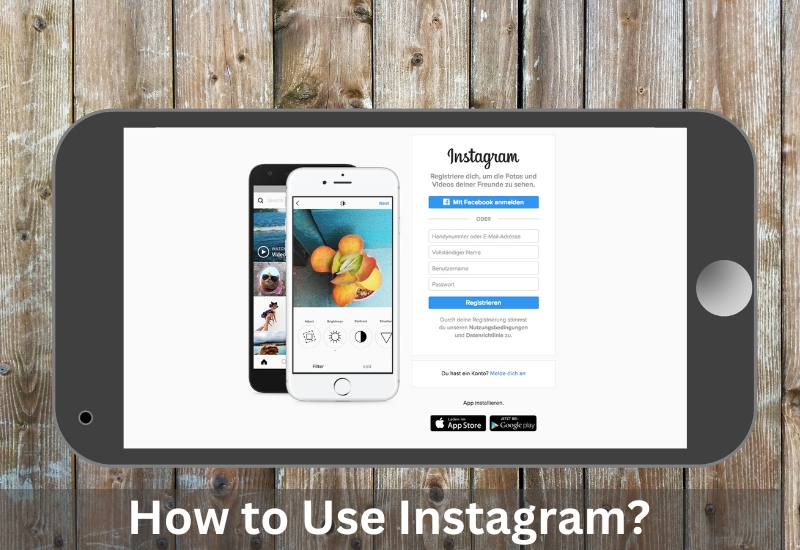
How to Use Instagram

Creating an Instagram account opens up a world of creativity, inspiration, and connection, allowing you to express yourself and engage with a diverse community of users. Creating an Instagram account is a simple and straightforward process that allows you to join the vibrant community and share your moments with the world. Here’s what you need to know:

How to Use Instagram

Download the App: Install the Instagram app from your device’s app store.

Sign Up: Open the app and sign up with either your email address or phone number.

Username and Password: Choose a unique username and a strong, memorable password.

Profile Information: Add a profile photo, a bio, and links to your website or other social media profiles.

Privacy Settings: Adjust your account’s privacy settings based on your preferences.

Connect with Friends: Find and follow friends and accounts that interest you.

Start Posting: Begin sharing your photos, videos, stories, and engage with others through likes, comments, and messages.

Understanding Instagram Feed Algorithm

Instagram uses an algorithm to determine the order of posts shown on users’ feeds, based on relevancy and user engagement.

Engagement Factors: The algorithm considers factors like likes, comments, shares, and saves to determine the popularity and relevance of a post.

User Preferences: The algorithm analyses a user’s past behavior, including the accounts they engage with most, to tailor their feed accordingly.

Timeliness: Recent posts are given priority, but the algorithm also considers the likelihood of user engagement.

Content Type: The algorithm takes into account the types of content a user typically engages with, such as photos, videos, or carousel posts.

Interaction Patterns: The algorithm considers the frequency and consistency of a user’s interactions with specific accounts.

Understanding the Instagram feed algorithm helps users optimise their content strategy to increase visibility and engagement on the platform.

Navigating the Instagram Interface

Here’s a breakdown of navigating the Instagram interface:

Home Feed: The home feed displays posts from accounts you follow, where you can scroll vertically to view content.

Explore Page: Tap the magnifying glass icon to access the Explore page, which showcases recommended posts and accounts based on your interests.

Profile: Your profile is where you can view and edit your own posts, bio, followers, and following. It also displays your IGTV videos and archived posts.

Notifications: The heart icon brings you to the notifications tab, where you can see likes, comments, mentions, and followers’ activities.

Direct Messages: The paper airplane icon allows you to access your direct messages, where you can chat with individuals or groups.

Story Viewer: Tap on circles at the top of the home feed or profile to view friends’ Stories, which are temporary posts that disappear after 24 hours.

Search: Use the search bar to find specific accounts, hashtags, or locations.

Navigating the Instagram interface allows you to explore content, engage with others, and customise your own profile, making the most of your Instagram experience.

Managing and Editing Your Profile on Instagram

Your Instagram profile is your online identity, and managing and editing it allows you to make a strong impression and effectively engage with your audience. Here’s what you can do:

Profile Picture: Choose a clear and representative profile picture that reflects your personal brand or identity.

Bio: Craft a concise and engaging bio that highlights your interests, profession, or any other relevant information.

Website Link: Include a link to your website or other social media profiles to drive traffic and expand your online presence.

Highlight Reels: Create and organise Story Highlights that showcase your best content and important information.

Activity Status: Adjust your activity status visibility to control who can see when you were last active on Instagram.

Privacy Settings: Customise your privacy settings to control who can view your posts, comment on them, or send you direct messages.

Tagged Photos: Review and manage the photos you are tagged in to maintain control over your online representation.

Regularly reviewing and updating your profile ensures that it accurately represents you and your brand while providing a positive and engaging experience for your Instagram followers.

Privacy and Security Settings

Account Privacy: Choose between a public or private account, controlling who can view your posts and follow you.

Blocking: Block specific users to prevent them from viewing your profile, interacting with your content, or contacting you.

Two-Factor Authentication: Enable two-factor authentication for added security, requiring an additional verification step during login.

Story Controls: Customise who can view your Stories, hide them from specific users, or disable resharing.

Comment Controls: Filter and restrict comments on your posts, limiting interactions to desired audiences.

Message Controls: Manage message requests and filter out unwanted or inappropriate messages.

Data Settings: Access and control the data Instagram collects about you, including ad preferences and account activity.

Login Activity: Monitor and review recent login activity to detect any unauthorised access to your account.

Account Recovery: Set up account recovery options like email or phone number to regain access in case of a security breach.

Using Instagram Insights for Business Accounts

Instagram Insights provides valuable analytics and data for business accounts, offering insights into your audience, content performance, and engagement.

Post Performance: Analyze the reach, impressions, engagement, and saves of your posts to understand what content resonates with your audience.

Story Insights: Measure the reach, taps forward, taps back, and replies on your Instagram Stories to assess their effectiveness.

Follower Growth: Track the growth of your follower count over time and identify trends or patterns.

Promotions and Ads: Assess the performance of your promoted posts and advertisements, including reach, impressions, and engagement metrics.

By utilizing Instagram Insights, businesses can make data-driven decisions, optimize their content strategy, and better understand their audience to drive growth and engagement on the platform.

Exploring the Explore Page on Instagram

The Explore page on Instagram is a powerful tool that allows you to discover new content, connect with users beyond your immediate network, and find inspiration. Here’s what you can expect when exploring the Explore page:

Recommended Content: The Explore page curates personalised content based on your interests, engagement history, and the accounts you follow.

Trending Topics: Discover trending hashtags, challenges, and topics that are currently popular on Instagram.

Discover New Accounts: Find and follow accounts that align with your interests, such as influencers, brands, or creators in specific niches.

Explore by Category: Navigate through different categories, such as art, travel, food, fashion, and more, to explore content tailored to your preferences.

IGTV and Reels: Explore a variety of IGTV videos and Reels created by users around the world, providing entertainment and inspiration.

Discovering and Following Users on Instagram

Here’s how you can discover and follow users on Instagram:

Explore Page: Explore the Explore page to find recommended accounts based on your preferences, engagement, and trending content.

Hashtags: Search for hashtags relevant to your interests and explore the posts under those hashtags to find users sharing similar content.

Following Suggestions: Instagram suggests accounts to follow based on your interactions, mutual connections, and popular accounts in your network.

Recommendations: Engage with the content of accounts you already follow to receive recommendations of similar users or related content.

User Interactions: Pay attention to users who engage with your posts or leave meaningful comments, and consider following them back.

By actively exploring and following users on Instagram, you can build a diverse and engaging network, discover new perspectives, and create meaningful connections within the Instagram community.

Keeping up with Instagram Updates and Features

Instagram constantly introduces new updates and features to enhance the user experience and provide exciting opportunities for engagement.

App Updates: Enable automatic app updates on your device to ensure you have the latest version of the Instagram app.

In-App Notifications: Keep an eye on the notifications within the Instagram app for any announcements or feature updates.

Tech News and Websites: Stay informed by following tech news websites and blogs that cover Instagram updates and changes.
Community and Influencers: Follow Instagram influencers, experts, and community members who often share news and updates about the platform.

Read More Related Articles –

12 Instagram Tricks and Tips – Instagram Secrets

Promote Instagram Account for free: Know How You can do it!

How To Use Instagram Filters?

Last updated on May 20, 2023 By Kevin Anderson

How To Use Instagram Filters?

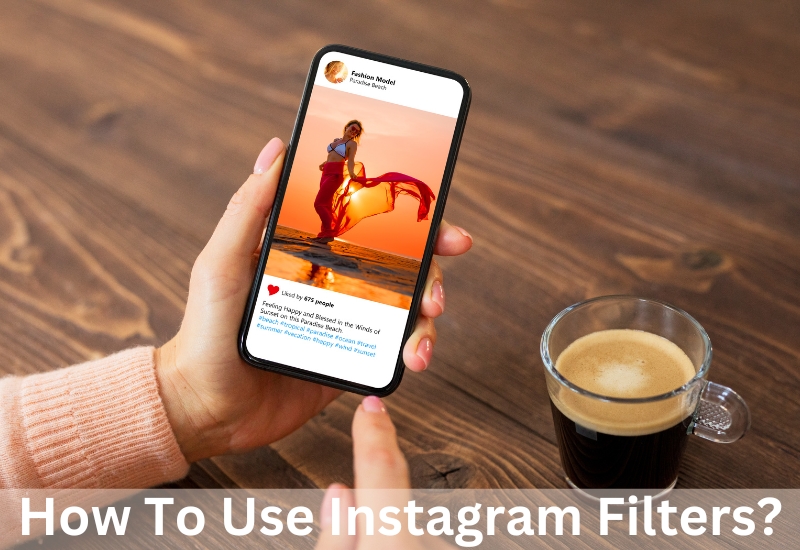
Instagram filters are a fun and well-liked feature that allows users to enhance their photos and videos with profuse visual effects. Whether you want to add a touch of nostalgia or create a vibrant look, Instagram filters can help you achieve the desired aesthetic. In this article, we will walk you through the steps of using Instagram filters to enhance your posts. Making use of Instagram filters is a simple yet effective way to add creativity and personality to your posts. Test different filters and explore the various editing tools to create visually remarkable content that stands out in your Instagram feed.

How To Use Instagram Filters?

Exploring Filter Options: Understanding the Different Types

When it comes to Instagram filters, there is a wide range of options available, each with its own unique style and effect. Here are some of the different types of filters you can explore:

Classic Filters: Instagram offers a collection of classic filters such as Clarendon, Juno, Valencia, and more, which add subtle enhancements to your photos.

Vintage Filters: These filters give your photos a nostalgic and retro look, often mimicking film camera effects with faded colours and vignettes.

Black and White Filters: Transform your photos into timeless monochrome masterpieces with black and white filters that emphasise contrast and texture.

Colourful Filters: If you’re looking to make your photos pop with vibrant and bold colors, there are filters available that intensify and saturate the hues.

Light Leaks and Lens Flares: These filters add artistic and dreamy effects by simulating light leaks and lens flares, giving your photos a whimsical touch.

Creative Filters: Instagram also offers creative filters that go beyond traditional effects, allowing you to experiment with artistic styles like painting, sketching, or graphic designs.

Applying Filters to Your Photos: Step-by-Step Guide

Open Instagram: Launch the Instagram app on your mobile device and log in to your account.

Select a Photo: Choose the photo you want to edit by either taking a new one or selecting from your gallery.

Tap the Edit Icon: Once you’ve selected the photo, tap on the edit icon located at the bottom of the screen. It looks like three sliders.

Choose a Filter: Scroll through the filter options available and tap on the one that suits your desired aesthetic.

Adjust Filter Intensity (Optional): Some filters allow you to adjust the intensity. You can do this by using the slider provided.

Apply Other Editing Tools (Optional): Instagram also offers additional editing tools like brightness, contrast, saturation, and more. Explore these options to fine-tune your photo.

Save or Share: Once you’re satisfied with the edits, tap “Done” to apply the filter and any other adjustments. You can then save it to your gallery or share it directly to your Instagram feed or story.

Adjusting Filter Intensity: Enhancing or Subduing Effects

Whether you want to make the filter’s impact more pronounced or tone it down for a subtle touch, adjusting the intensity gives you creative control. Simply tap on the selected filter again and use the provided slider to increase or decrease the effect. This flexibility enables you to enhance the mood, colors, and overall aesthetic of your photos, ensuring they perfectly match your vision and style on Instagram.

Keeping Up with Instagram Filter Updates: Staying on Top of New Features

Follow Official Instagram Accounts: Follow Instagram’s official account and their blog to receive updates on new filter releases and feature enhancements.

Engage with Influencers: Many influencers and creators share their favourite filters and new discoveries.

Join Photography and Editing Communities: Engage with communities dedicated to photography and editing on social media platforms. They often discuss and share the latest filter trends and updates.

Explore Instagram’s Discover Section: The Discover section on Instagram showcases trending content and popular filters, giving you insights into what’s new and popular.

Update Your Instagram App: Ensure you have the latest version of the Instagram app installed to access all the latest features and filter updates.

Using Filters for Videos: Adding Visual Appeal to Your Clips

By using filters for videos, you can enhance the colours, tones, and overall atmosphere of your footage. Whether you want to create a vintage look, add a dreamy vibe, or intensify the colors, filters can transform the aesthetic of your videos and make them more captivating to viewers. Simply select the desired filter before posting the video, and it will be applied throughout the entire clip. Experimenting with different filters can help you find the perfect style to make your videos stand out on Instagram.

Applying Filters to Instagram Stories: Engaging Your Audience

Using filters on your Instagram Stories is an effective way to captivate and engage your audience. Here’s why:

Visual Enhancement: Filters can instantly enhance the visual appeal of your Stories, making them more vibrant, unique, and visually appealing.

Consistent Aesthetic: Applying filters consistently across your Stories can create a cohesive and branded look, reinforcing your personal or business style.

Storytelling Enhancement: Filters can help convey emotions, moods, or themes, allowing you to enhance the storytelling aspect of your Stories.

Interactive Elements: Instagram offers interactive filters that allow your audience to interact and engage with your content, increasing participation and interest.

Stand Out: Using creative or trending filters can make your Stories stand out in a sea of content, catching the attention of your followers.

Discovering Popular Filters: Trending and Viral Styles

Exploring popular filters on Instagram can introduce you to trending and viral styles that can elevate your content. Here’s why it’s worth discovering these filters:

Stay Relevant: Using popular filters helps you stay current and connected with the latest trends on the platform.

Engage with Trends: By incorporating trending filters into your posts, you can join in on popular conversations and engage with a wider audience.

Boost Visibility: Utilising filters that are currently popular can increase the visibility of your content, as users often search and engage with these filters.

Gain Inspiration: Popular filters can inspire you to explore new creative directions and experiment with different visual styles.

Customising Filters: Personalising Your Instagram Style

Customising filters on Instagram allows you to tailor the visual aesthetic to match your personal style and create a unique look for your content. Here’s why it’s beneficial to customise filters:

Brand Consistency: By customising filters with specific adjustments, you can maintain a consistent visual identity across your Instagram feed.

Highlight Your Preferences: Adjusting filters to suit your preferences helps you showcase the colours, tones, and moods that resonate with your style.

Differentiate Yourself: Customised filters can set you apart from others, giving your content a distinct and recognizable appearance.

Reflect Your Brand: Customising filters enables you to align the look and feel of your posts with your personal brand or business.

Saving Filter Presets: Streamlining Your Editing Process

Saving filter presets on Instagram allows you to streamline your editing process and quickly apply your favourite filters to future photos or videos. Here’s why it’s advantageous to save filter presets:

Time Efficiency: Instead of scrolling through numerous filters each time, saving presets enables you to apply your preferred filters with just a few taps.

Consistency: Saving presets ensures a consistent look and feel across your Instagram posts, maintaining a cohesive aesthetic.

Personalization: By saving your favorite filters, you can tailor them to your specific preferences and create a signature style for your content.

Workflow Optimization: Presets help you maintain an efficient editing workflow, especially when editing multiple photos or videos in a series.

Related Article

How To Use Instagram Hashtags For Business : Complete Guide

How To Download Instagram Photos, Videos And Reels?

Instagram’s Algorithm and How it’s Designed to Help You Grow

Powerful Instagram Tools to Boost Your Social Media Presence

Promote Instagram Account for free: Know How You can do it!

How to Use Instagram for Business – Complete Guide with Tips

How To Turn On Facebook Notifications?

Last updated on May 13, 2023 By Kevin Anderson

How To Turn On Facebook Notifications?

Facebook is a powerful tool for staying connected with friends and family, sharing content, and engaging in conversations with people from around the world. However, with so many activities and interactions happening on the platform, it can be overwhelming to keep track of everything. That’s where notifications come in handy.

How To Turn On Facebook Notifications?

Accessing Notification Settings

  • Accessing Notification Settings on Facebook is essential for managing your notifications effectively.
  • To access the Notification Settings, you need to log into your Facebook account.
  • Once logged in, click on the drop-down arrow in the top-right corner of the Facebook page.
  • From the drop-down menu, select “Settings & Privacy.”
  • In the expanded menu, click on “Settings.”
  • On the left-hand side of the Settings page, locate and click on “Notifications.”

This will take you to the Notification Settings page where you can customise your notification preferences according to your preferences and needs.

Selecting Notification Types

Selecting notification types on Facebook allows you to choose the specific types of activities or events for which you want to receive notifications. By customizing notification types, you can ensure that you only receive alerts for the activities that are most relevant to you. Whether it’s receiving notifications for new friend requests, comments on your posts, or upcoming events, selecting notification types gives you control over the information you want to be notified about, allowing for a more tailored and streamlined Facebook experience.

Enabling Email Notifications

Here’s how you can enable email notifications:

Access Notification Settings

  • Log into your Facebook account.
  • Click on the drop-down arrow in the top-right corner and select “Settings & Privacy.”
  • From the expanded menu, click on “Settings.”

Configure Email Notifications

  • In the Settings menu, navigate to the “Notifications” tab.
  • Look for the “Email” section or option.
  • Choose the types of notifications you want to receive via email, such as friend requests, comments, or event invites.
  • Save the changes to enable email notifications.

By enabling email notifications, you can stay updated on important activities and events even when you’re not actively browsing Facebook, ensuring that you don’t miss out on any crucial information.

Activating Push Notifications on Mobile Devices

Activating push notifications on mobile devices for Facebook is an efficient way to receive real-time updates and stay connected on the go.

Install the Facebook App

  • Download and install the official Facebook app from your device’s app store.
  • Log into your Facebook account or create a new one.

Access App Settings

  • Open the Facebook app on your phone.
  • Tap on the menu icon (typically represented by three horizontal lines) to access the side menu.

Enable Push Notifications

  • In the side menu, scroll down and tap on “Settings & Privacy.”
  • Select “Settings” and then tap on “Notifications.”
  • Enable the option for “Push Notifications” or “Mobile Notifications.”

Customise Notification Settings

Choose the specific types of notifications you want to receive via push notifications, such as friend requests, comments, or event invites.

Enabling/Disabling Activity Notifications

Enabling or disabling activity notifications on Facebook allows you to choose which types of activities you want to be notified about.

  • Access the Facebook Settings menu.
  • Click on the “Notifications” option.
  • Look for the “Activity” or “Activity Notifications” section.
  • Choose the specific activities for which you want to enable or disable notifications, such as likes, comments, tags, friend requests, or event invites.
  • Toggle the corresponding switches to enable or disable notifications for each activity.
  • Save the changes to apply the updated activity notification settings.

Enabling activity notifications can help you stay informed and engaged with your social interactions, while disabling certain notifications can reduce unnecessary distractions and notifications overload.

Regularly reviewing and adjusting these settings allows you to customise your notification experience based on your preferences and needs.

Customising Notification Sound and Vibration

Customizing notification sound and vibration on Facebook allows you to personalize your experience and easily identify different types of notifications.

Sound

  • Access the Notification Settings on Facebook.
  • Look for the sound options, which may be labeled as “Sound” or “Notification Sound.”
  • Choose from the available sound options or upload your own custom sound.
  • Preview the sound to ensure it suits your preference.
  • Save the changes to apply the new sound to your notifications.

Vibration

  • Locate the vibration options within the Notification Settings.
  • Select the vibration pattern that you find most suitable.
  • Test the vibration pattern to ensure it matches your desired intensity or duration.
  • Save the changes to apply the new vibration pattern to your notifications.

By customizing notification sound and vibration, you can create a personalized and distinctive experience, making it easier to identify specific notifications on your device without even looking at the screen.

Setting Up Notifications for Specific Events

Setting up notifications for specific events on Facebook allows you to stay informed about important updates and activities. Here’s how you can set up notifications for specific events:

Find the Event

  • Locate the event you want to receive notifications for on Facebook.
  • This can be done through the Facebook Events section or by searching for the event using the search bar.

Enable Notifications

  • Once you have found the event, click on it to access the event page.
  • Look for the “Interested” or “Going” button and click on it to indicate your interest in the event.
  • A drop-down menu will appear; select “Notifications” from the options.
  • Choose your preferred notification settings, such as receiving notifications for updates, changes, or reminders related to the event.

Configuring Group Notifications

Configuring group notifications on Facebook allows you to control the frequency and type of notifications you receive from specific groups. Here’s how you can configure group notifications:

Access the Group Settings

  • Visit the Facebook group you want to configure notifications for.
  • Click on the three dots (…) located below the group cover photo.
  • Select “Group Settings” from the drop-down menu.

Customize Group Notifications

  • In the Group Settings, navigate to the “Notifications” tab.
  • Choose the desired notification settings, such as receiving all notifications, only highlights, or turning off notifications completely.
  • You can also adjust the frequency of notifications, such as receiving a daily or weekly digest instead of immediate notifications.
  • Save the changes to apply the updated group notification settings.

By configuring group notifications, you can manage the influx of notifications from various groups and prioritize the ones that are most important to you, ensuring a more organized and tailored Facebook experience.

Testing and Troubleshooting Notification Settings

Testing and troubleshooting your notification settings on Facebook is crucial to ensure that you receive the desired notifications and address any issues.

  • Start by accessing the Notification Settings on Facebook, as mentioned earlier.
  • Review your notification preferences and ensure they are set correctly.
  • Check if you receive the appropriate notifications for these interactions.
  • Clear your browser cache or restart your mobile app to resolve any temporary glitches.
  • If the issue continues, you can contact Facebook help center

Keep in mind that Facebook occasionally updates its notification system, so staying updated with the latest features and settings is important for troubleshooting effectively.

Managing Notification Frequency

Managing notification frequency on Facebook allows you to control the volume and frequency of notifications you receive, ensuring a more manageable and less overwhelming experience. Here’s how you can manage notification frequency:

Access Notification Settings

  • Go to the Facebook Settings menu.
  • Locate and click on the “Notifications” option.

Customize Notification Frequency

  • Review the available options for notification frequency.
  • Choose the desired frequency, such as receiving notifications immediately, receiving a daily summary, or receiving notifications only for important updates.
  • Adjust the frequency settings according to your preferences.

By managing notification frequency, you can strike a balance between staying informed and avoiding notification overload, allowing you to have a more controlled and focused experience on Facebook.

Read More Related Articles –

How to Start a Facebook Business Page

Facebook Messenger Ads : A Beginner’s Guide

How to Run Facebook Contest To Boost Your Business

Ultimate Facebook Profile Picture Size Guide

How to Download Facebook Story And Video Online?

Best Facebook Business Page Tips, Tricks to Optimize

Why Use Facebook Page for Business – Benefits

How to launch Your Own Facebook Group & Get Loyal Fans!

« Previous Page
Next Page »

Our Services

Buy Gmail Accounts
Buy TikTok Accounts
Buy IG Accounts
Buy FB Accounts
Buy Twitter Accounts
Buy Youtube Accounts
Buy Yahoo Accounts
Buy Hotmail Account
Buy Linkedin Accounts
Buy AOL Accounts
Buy Pinterest Accounts
Buy Edu Emails
Buy iCloud Email Accounts


Contact Us

Contact us, If you have any queries before placing OR after getting your order.

Email: rocky.bulkbuy@gmail.com

WhatsApp: 

+1 (339) 241-6012

Telegram:

Rocky_BAB

trust
payment

© Copyright 2026 BulkAccountsBuy Our Sitemap · All Logos & Trademark Belongs To Their Respective Owners·